
Service Hub: New KSDE Ticketing System
The Kansas State Department of Education is implementing a ticketing system for external entities such as districts and private schools to request assistance from KSDE staff. Supporting the Kansas Education Data System (KEDS) will be the first use of this application. We will be importing those unresolved issues in our KEDS@KSDE.gov email box into this system so that we can better track these issues.
We are calling this new ticket system our Service Hub, and it can be found at https://service.hub.ksde.gov. Here is the current view, but it will be updated and reorganized as we develop and expand this application.
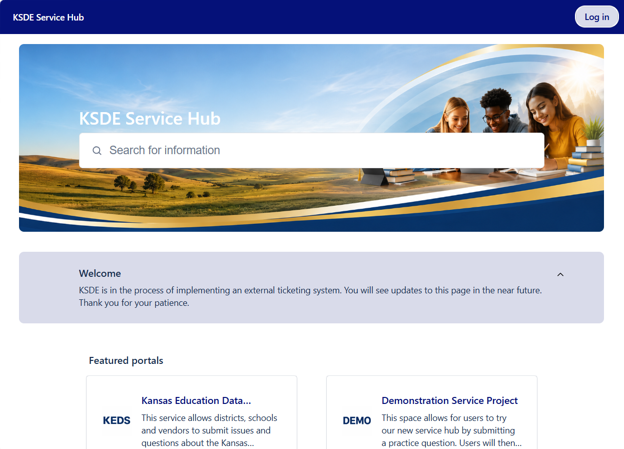
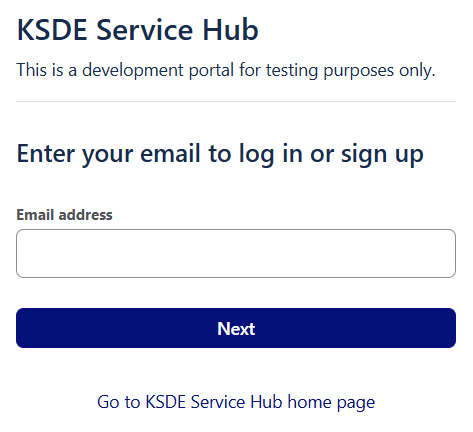
We encourage you to go to this page and create an account by clicking Login in the top right corner. You will then enter your district/organization email address.
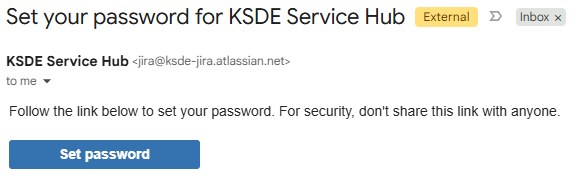
You will receive an email from jira@ksde-jira.atlassian.net requesting that you set your password. Click the Set password link.
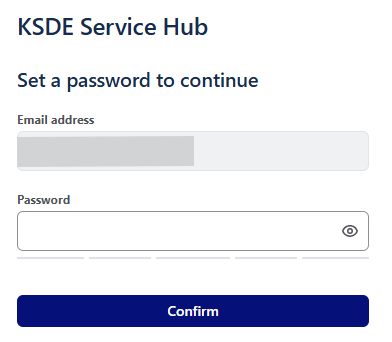
Enter your password and click Confirm.
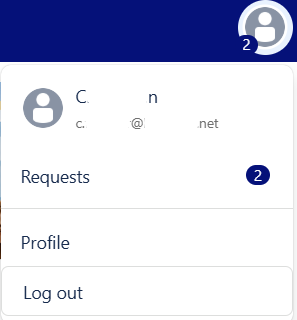
Once your account is setup, the login button will change to an avatar and if you click on it, you will be able to see your name, email, Requests, Profile and Log out.
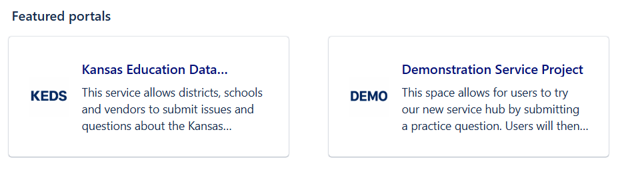
To create a new issue, click on KSDE Service Hub in the top left-hand corner to go to the main page. Select the portal you would like to submit a request. All KEDS related request will go through the Kansas Education Data Exchange portal.
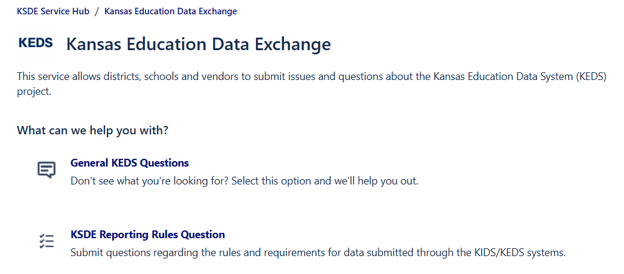
There are going to be different issue types per portal. By selecting the most appropriate issue type, your request will be directed to the appropriate staff, workflow, and form.
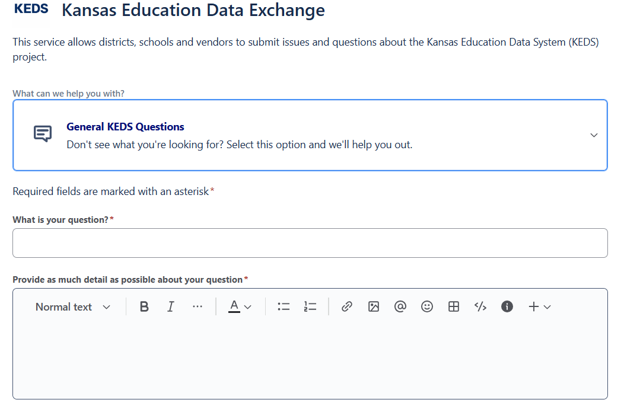
Complete the form by filling out all of the required* fields, when you are done, click Send.
When you submit a ticket, an email from the Service Hub (service.hub@ksde.gov) will be sent to you. You can reply to these emails, but we are encouraging individuals to enter the information directly in the portal.
Note: We will not be able to receive issues sent to the service hub email address (service.hub@ksde.gov).
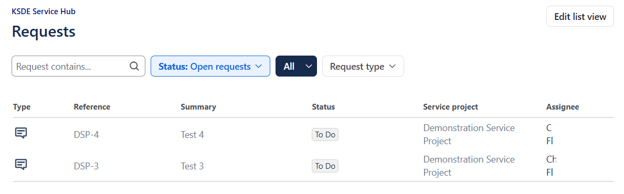
To view requests that you have created or issues we may have created for you, click the Avatar, then Requests. You will be able to view requests from any project in this area. Click the link under Reference or Summary for an issue to view the details.
This details page allows you to view the history of the issue. If you need to update KSDE about this issue, you can add a comment at the bottom of this page.
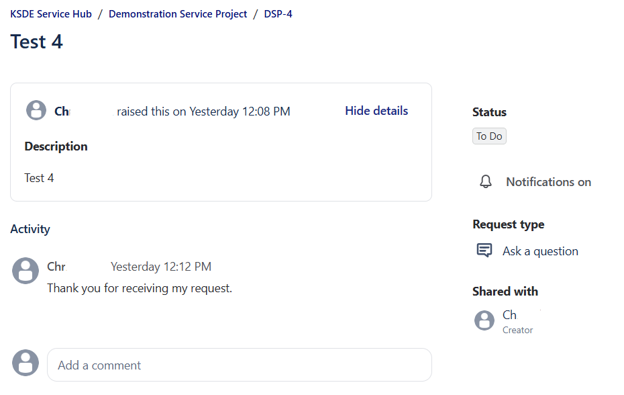
When KSDE staff adds a comment or updates the status, you will be notified via email. Because we continue to focus on security, those emails will say something like; KSDE staff commented: [●●●●●]. Again, we ask you use the portal to view the updates.
We plan to be able to exchange more information than KSDE rules and regulations allow with email. We are continuing our policy of no Personally Identifiable Information (PII), but you may include the state student ID. As we develop this application, we will communicate updates to expectations with respect to security.
If you would like to test how this process works, feel free to submit something to our Demonstration Service Project. We will add basic replies and change the statuses of these issues, so you know what to expect when you submit a real ticket.
We will work to move all unresolved question and issues over to this new ticket system except for our Key Master and DVP accounts. If you have issues or questions, you can still email the KEDS@ksde.gov email address for assistance. Thank you for adapting and working with us while we make this transition.
Note: We will continue to leverage Microsoft Bookings to schedule virtual meetings with districts to work through issues. As the KEDS program progresses, we will have different options available to districts, whether for training or support purposes.
To schedule an appointment with KSDE, please go to the KEDS scheduling website and select the appropriate meeting type. You will receive a Microsoft Teams meeting invite.